| 1 | from fastapi import FastAPI, Request |
| 2 | from rcs import ( |
| 3 | AsyncPinnacle, |
| 4 | MessageEvent, |
| 5 | RcsBaseOptions, |
| 6 | RcsButtonSendLocationLatLong, |
| 7 | RichCard, |
| 8 | RichButton_Call, |
| 9 | RichButton_OpenUrl, |
| 10 | RichButton_RequestUserLocation, |
| 11 | RichButton_ScheduleEvent, |
| 12 | RichButton_SendLocation, |
| 13 | RichButton_Trigger, |
| 14 | RichCardsMessage, |
| 15 | RichTextMessage, |
| 16 | ) |
| 17 | from dotenv import load_dotenv |
| 18 | import os |
| 19 | |
| 20 | load_dotenv() |
| 21 | |
| 22 | app = FastAPI() |
| 23 | |
| 24 | client = AsyncPinnacle(api_key=os.environ.get("PINNACLE_API_KEY")) |
| 25 | |
| 26 | |
| 27 | @app.get("/send-rcs/{phone_number}") |
| 28 | async def send_rcs(phone_number: str): |
| 29 | res = await client.messages.rcs.send( |
| 30 | request=RichCardsMessage( |
| 31 | options=RcsBaseOptions( |
| 32 | validate_=True |
| 33 | ), # Will let you know if your RCS message will fail to be sent ahead of making the request to carriers |
| 34 | from_=os.getenv("AGENT_ID"), |
| 35 | to=phone_number, |
| 36 | cards=[ |
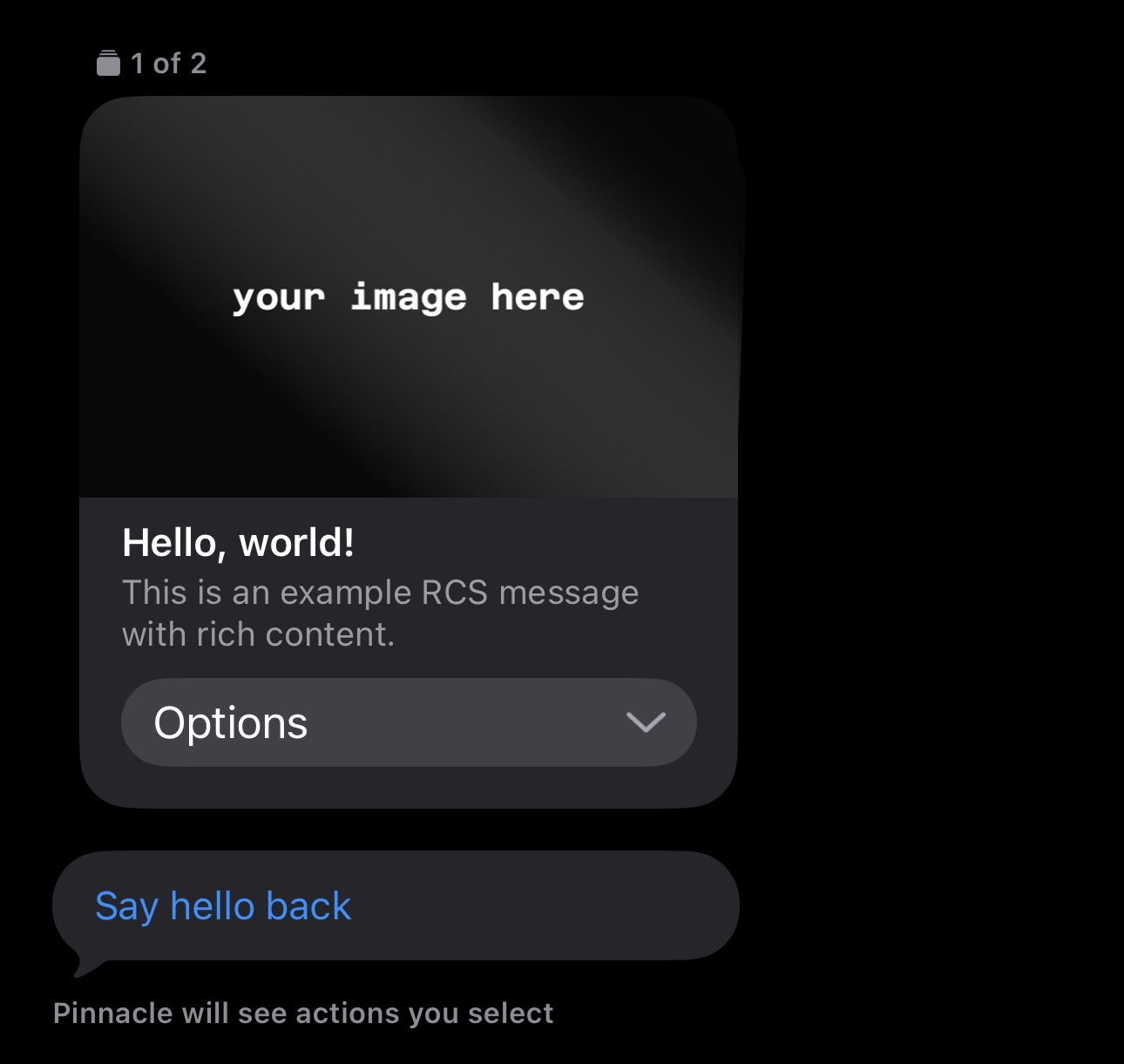
| 37 | RichCard( |
| 38 | media="https://server.trypinnacle.app/storage/v1/object/sign/vault/3/67330f56-8fc4-4d9e-882d-161b84fc8e31/Your_image_here.png?token=eyJraWQiOiJzdG9yYWdlLXVybC1zaWduaW5nLWtleV9hOGI0YTI0NC00NzY4LTRhOTktYWI4MS1iNmZhNTZhNGQyZWYiLCJhbGciOiJIUzI1NiJ9.eyJ1cmwiOiJ2YXVsdC8zLzY3MzMwZjU2LThmYzQtNGQ5ZS04ODJkLTE2MWI4NGZjOGUzMS9Zb3VyX2ltYWdlX2hlcmUucG5nIiwiaWF0IjoxNzYwOTg0OTEwLCJleHAiOjMxNzEyMDk4NDkxMH0.bcIMtiBAvV8C7Gw7uYaR5TMGsCep7w1TvRMjoRlP_-g", |
| 39 | title="Hello, world!", |
| 40 | subtitle="This is an example RCS message with rich content.", |
| 41 | buttons=[ |
| 42 | RichButton_Trigger( |
| 43 | type="trigger", |
| 44 | metadata="", |
| 45 | payload="HELLO", |
| 46 | title="Say hello back", |
| 47 | ), |
| 48 | RichButton_SendLocation( |
| 49 | type="sendLocation", |
| 50 | lat_long=RcsButtonSendLocationLatLong( |
| 51 | lat=36.7749, lng=-122.4194 |
| 52 | ), |
| 53 | metadata="", |
| 54 | title="View example location", |
| 55 | ), |
| 56 | ], |
| 57 | ), |
| 58 | RichCard( |
| 59 | media="https://server.trypinnacle.app/storage/v1/object/sign/vault/3/67330f56-8fc4-4d9e-882d-161b84fc8e31/Your_image_here.png?token=eyJraWQiOiJzdG9yYWdlLXVybC1zaWduaW5nLWtleV9hOGI0YTI0NC00NzY4LTRhOTktYWI4MS1iNmZhNTZhNGQyZWYiLCJhbGciOiJIUzI1NiJ9.eyJ1cmwiOiJ2YXVsdC8zLzY3MzMwZjU2LThmYzQtNGQ5ZS04ODJkLTE2MWI4NGZjOGUzMS9Zb3VyX2ltYWdlX2hlcmUucG5nIiwiaWF0IjoxNzYwOTg0OTEwLCJleHAiOjMxNzEyMDk4NDkxMH0.bcIMtiBAvV8C7Gw7uYaR5TMGsCep7w1TvRMjoRlP_-g", |
| 60 | title="Your second card", |
| 61 | subtitle="This subtitle is optional. Each card can have different buttons, like this one allowing you to share your location instead of view a location.", |
| 62 | buttons=[ |
| 63 | RichButton_RequestUserLocation( |
| 64 | type="requestUserLocation", |
| 65 | metadata="", |
| 66 | title="Share your location", |
| 67 | ), |
| 68 | ], |
| 69 | ), |
| 70 | ], |
| 71 | # Quick replies are available across all cards while buttons are specific to certain cards, and only show when a user swipes to that particular card |
| 72 | quick_replies=[ |
| 73 | RichButton_ScheduleEvent( |
| 74 | type="scheduleEvent", |
| 75 | title="Add example event to cal", |
| 76 | metadata="", |
| 77 | event_title="Sample Event", |
| 78 | event_start_time="2025-12-11T00:00:00Z", |
| 79 | event_end_time="2025-12-11T23:59:59Z", |
| 80 | event_description="This is an example calendar event.", |
| 81 | ), |
| 82 | RichButton_Call( |
| 83 | type="call", |
| 84 | metadata="", |
| 85 | payload="+14152321234", |
| 86 | title="Call example number", |
| 87 | ), |
| 88 | RichButton_OpenUrl( |
| 89 | type="openUrl", |
| 90 | metadata="", |
| 91 | payload="https://docs.pinnacle.sh/api-reference/messages/send-rcs", |
| 92 | title="View RCS docs", |
| 93 | ), |
| 94 | ], |
| 95 | ) |
| 96 | ) |
| 97 | return res |
| 98 | |
| 99 | |
| 100 | @app.post("/inbound-rcs") |
| 101 | async def inbound_rcs(request: Request): |
| 102 | try: |
| 103 | body = await request.body() |
| 104 | pinnacle_request = { |
| 105 | "headers": dict(request.headers), |
| 106 | "body": body, |
| 107 | } |
| 108 | # Process and validate the webhook |
| 109 | # Returns a fully typed MessageEvent object |
| 110 | message_event: MessageEvent = await client.messages.process( |
| 111 | pinnacle_request, secret=os.getenv("PINNACLE_SIGNING_SECRET") |
| 112 | ) |
| 113 | print(message_event) |
| 114 | |
| 115 | # Check if the message contains a button click with HELLO payload |
| 116 | # View full docs on processing events here: https://docs.pinnacle.sh/methods/process |
| 117 | if message_event.direction == "INBOUND": |
| 118 | # Check if this is RCS button data (discriminated by type field) |
| 119 | if ( |
| 120 | message_event.message.type == "RCS_BUTTON_DATA" |
| 121 | ): |
| 122 | button = message_event.message.button |
| 123 | if button.payload == "HELLO": |
| 124 | await send_hello(message_event.conversation.from_) |
| 125 | |
| 126 | except Exception as e: |
| 127 | print("Error occurred processing webhook message", e) |
| 128 | |
| 129 | return {"message": "You received a message"} |
| 130 | |
| 131 | |
| 132 | async def send_hello(to: str): |
| 133 | res = await client.messages.rcs.send( |
| 134 | request=RichTextMessage( |
| 135 | text="Hello! Button clicked successfully.", |
| 136 | from_=os.getenv("AGENT_ID"), |
| 137 | to=to, |
| 138 | quick_replies=[], |
| 139 | ) |
| 140 | ) |
| 141 | print(res) |